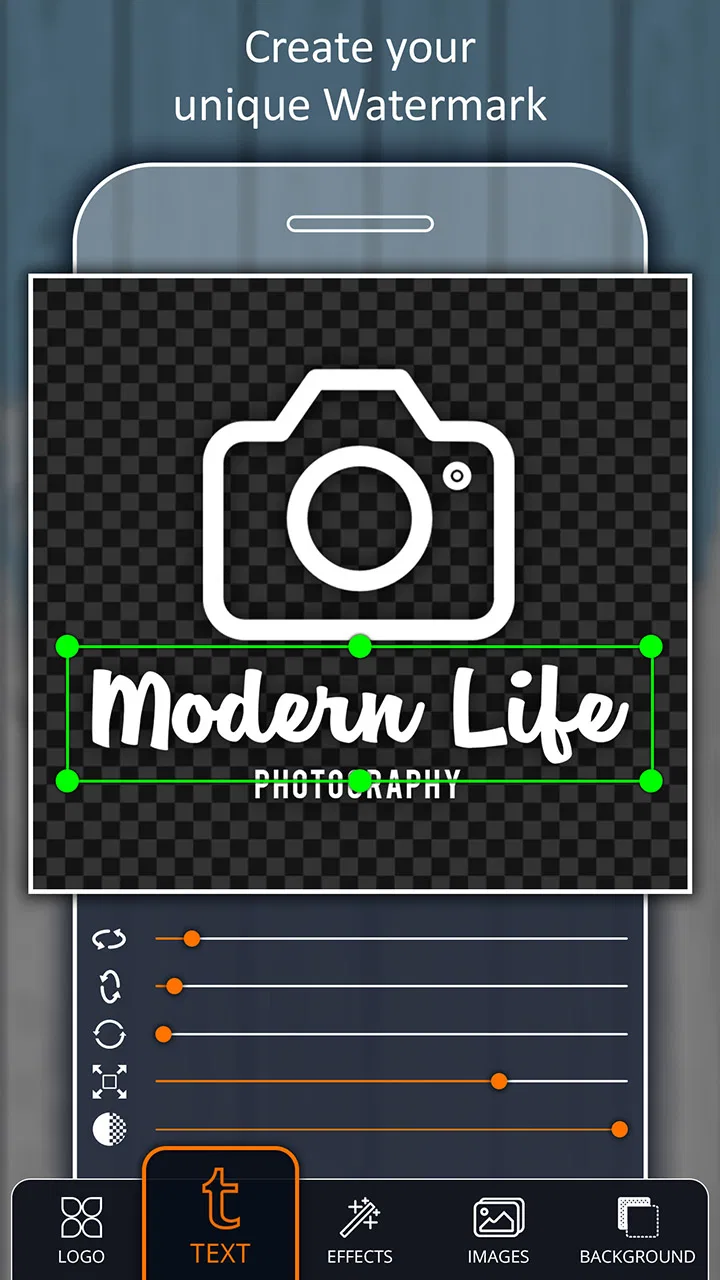
Add Watermark on Photos
- 4.8
- Rating
- 5.00M
- Installs
- Free
- Price

 Analysis by App-foxy
I usually think of watermarking as one of those jobs that should take less than a minute but somehow turns into a small editing project. Add Watermark on Photos, developed by Simply Entertaining Apps, is built around making that task more direct. It is a free photography app for Android that lets me place a visible mark on an image before sharing it, publishing it, or sending it to someone else.
That narrow purpose is also its biggest strength. I do not open it expecting a complete photo editor, a social network, or a cloud-based portfolio. I use it when the important question is simple: how can I identify or protect this picture without opening a desktop design tool? After spending time with the app, I found it most useful for creators, small businesses, photographers, online sellers, and anyone who regularly sends images outside their private camera roll.
The practical value is control before sharing, rather than dramatic visual editing. A watermark will not stop somebody from copying an image, but it can make ownership clearer, discourage casual reuse, and keep a name or brand attached to a picture as it travels. That distinction matters, and it is the right way to judge this app.
You May Also Like

 Google Keep - Notes and lists
Google Keep’s Quiet Growth Shows the Appeal of Simpler Notes
As mobile work gets busier, Google Keep keeps winning a simple contest: capture a thought quickly, find it later, and get on with the day.

 Blood Strike: 2.5 Anniversary
Blood Strike’s Loadouts Turn Every Drop Into a Tactical Gamble
A close look at Blood Strike’s custom loadouts: how fast access to signature weapons reshapes its battle royale rhythm, rewards preparation, and narrows the gap between fights.

 Pandora - Music & Podcasts
Pandora’s Music Is Easy to Start, but Harder to Recover
Pandora’s strength is its low-effort path from a seed to a station. Its weak spot is how much confidence it asks you to place in connection, setup, and quiet recovery.

 8 Ball Pool
 Is Built on Rivalries, Rematches, and Routine
A close look at the rivalries, rematches, shared routines, and unanswered safety questions that turn a quick pool match into a persistent mobile community.

 Samsung Music
’s Quiet Strength Is Playing What You Already Own
Its reach comes less from spectacle than from dependable access to a personal library. That simplicity is both the app’s strongest retention engine and its ceiling.

 AccuWeather: Weather Radar
AccuWeather Review: A Quick, Clear Forecast for Everyday Decisions
For everyday plans, the best forecast is the one you can understand quickly. AccuWeather makes rain timing, radar, and local conditions easy to act on, with a few trade-offs.
More From Our News Desk



What the app feels like in everyday use
The first thing I noticed is that the app solves a very specific problem without asking me to learn a complicated editing workflow. I can start with a photo, add a visible identifier, adjust its placement, and prepare the result for use elsewhere. The experience makes sense for quick jobs: a product picture for a marketplace listing, a preview sent to a client, a family photograph shared publicly, or a design sample that should not circulate without attribution.
A realistic example is a small online seller photographing a handmade item in the afternoon and posting it later that day. Instead of opening a full editor, creating a text layer, resizing it, and exporting another copy, the seller can use this app as a dedicated watermarking step. I would keep the original untouched, create a marked version for public use, and reserve the clean image for invoices, private messages, or future editing.
That separation between the original and the marked copy is more important than it sounds. Watermarking is often irreversible once an image has been exported, especially if the mark is placed over a busy area. Working from a duplicate gives me room to change the position or opacity without damaging the source. It also prevents an avoidable mistake: accidentally replacing a clean photograph with a version that is harder to reuse.
The app has been available since January 17, 2018, and its current version is 6.6. It supports Android 7.0 and newer, which makes it accessible on a wide range of devices. Its Everyone content rating also makes the audience broad. I would still pay attention to the phone itself, available storage, and the way Android handles photo access, because those practical details affect any image tool more than the age label does.
Where it earns its place beside ordinary alternatives
The usual alternative is a general-purpose editor. Those apps can often add text, logos, shapes, and layers, but they also bring menus and creative controls that are unnecessary when I only want a discreet ownership mark. A second alternative is adding a watermark in a desktop program, which offers more precision but is slower when the image is already on my phone. A third option is using a social platform’s built-in branding tools, although that ties the result to a particular service and may not help with files I plan to send elsewhere.
Add Watermark on Photos sits between those choices. It is more focused than a full editor and more flexible than relying on a single social network. That focus is convenient, but it also defines the trade-off: people who need advanced retouching, color correction, layered compositions, or detailed batch production may outgrow it quickly. I would not install it as my main photography editor. I would install it as a specialized tool that removes one repetitive step.
Its public reception suggests that this focused approach works for many people. The app has a 4.8 average from roughly 191 thousand ratings, with around 4.6 thousand written reviews and over 5 million installs. Those figures do not prove that every workflow will feel perfect, but they do indicate that the basic purpose is easy for a large audience to understand and use.
How I would build a safer watermark workflow
I would begin by deciding what the mark needs to accomplish. A personal name, business name, website text, logo, or date can serve different purposes. A large mark may protect an image more visibly, while a smaller one looks better in a portfolio. There is no single ideal position: a corner is less intrusive, but a mark placed over important visual content is harder to remove by simple cropping.
For public previews, I prefer a mark that can be read without overpowering the subject. For client proofs, I would make it more noticeable because the goal is to identify an unapproved preview rather than create a finished presentation. For family pictures, I would be more conservative. A watermark that works for product photography can look distracting on a portrait, so I would judge the image after export, not only while arranging the mark.
One useful habit is to inspect the whole frame at normal viewing size before saving. A watermark can look perfectly balanced when zoomed in and then appear too faint or too dominant when the image is viewed in a messaging app. I would also check the edges carefully. Marks placed too close to the border may be clipped by another platform’s crop, while marks placed directly on a plain background can be removed more easily than one integrated into the image area.
I would keep two naming patterns in my gallery: one for the original and one for the watermarked copy. That sounds basic, but it prevents confusion when several versions of the same photograph exist. If the app offers a choice of output location or file handling during the workflow, I would read that screen rather than tapping through automatically. Clear file organization is part of image protection because losing track of the clean source creates its own risk.
Trust begins with visible choices, not assumptions
Because this app works with personal photographs, I pay closer attention to what happens around image selection than I would with a simple calculator. Android may present permission prompts when an app needs access to photos or files. I treat those prompts as decision points: I choose the narrowest option that lets me complete the task, and I revisit the permission in system settings if I no longer use the app.
I do not assume that a photography app is automatically private just because its purpose is local editing. The safest approach is to read the permission wording shown on my own device, review any privacy information presented by the developer, and notice whether the workflow gives me a clear choice about the images I select. The app is made by Simply Entertaining Apps, but a developer name alone is not a substitute for checking the controls that appear during use.
This is especially important with sensitive material. I would avoid testing the app with identity documents, medical photographs, private legal papers, or unreleased commercial images until I had reviewed the app’s current permission and privacy screens. That is not a claim about what the app does with those files; it is a sensible rule for any tool that handles images I would not want exposed.
There is also a difference between a watermark and encryption. A visible mark communicates ownership or status, but it does not secure the underlying file. If I need confidentiality, I would use a protected sharing method as well. If I need proof that a photograph has not been altered, I would preserve the original and its surrounding records rather than treating a watermark as evidence. The app is useful for identification, not as a complete security system.
Free access, optional spending, and what to watch
The app is free to install, which makes it easy to try for a one-off job or a regular personal workflow. It also includes in-app purchases ranging from $4.99 to $19.99 per item. I would look carefully at the purchase screen before confirming anything, especially if I only need occasional watermarking. A free starting point is valuable, but the long-term cost matters if the app becomes part of a business routine.
My advice is to test the complete workflow before paying: select a non-sensitive image, create a marked copy, inspect the saved result, and make sure the output suits the place where it will be shared. I would also check whether the options I actually need are available without an upgrade. That is a more useful test than judging the app from its install page because watermarking quality depends on the details of the final file and the controls available during editing.
For someone marking a handful of images each month, a focused mobile tool can be more convenient than maintaining a desktop subscription. For a professional who processes large collections every day, the calculation changes. A desktop editor, a dedicated batch workflow, or a photo-management system may save more time even if it feels heavier at first. The right choice depends on volume and consistency, not simply on whether the app can place a mark.
Who should use it, and who should look elsewhere
I would recommend it to people who regularly publish photographs from a phone and want a separate branding or ownership step. It is a good match for independent sellers, event photographers sharing previews, artists posting work-in-progress images, and families who want a name attached to publicly shared pictures. It also suits users who find full editing suites intimidating and prefer a tool with one clear purpose.
I would be more cautious about recommending it to agencies or studios that need a repeatable, high-volume production pipeline. Those users may need exact templates, metadata handling, automated file naming, synchronized assets, or batch processing across many images. A dedicated desktop workflow could be better there. I would also steer away from it as the only tool for anyone who needs advanced logo design, detailed retouching, or precise color-managed exports.
There is another group that should think twice: people who believe adding a watermark makes an image impossible to steal. It does not. A determined person can crop, clone, blur, or recreate a mark. The app helps with attribution and discourages casual misuse, but it cannot replace careful sharing habits, low-resolution previews, contracts, or a record of the original file.
Small decisions that make the result better
My first tip is to create more than one watermark style for different situations if the app’s available controls allow it. A subtle personal mark can work for social posts, while a stronger proof mark can identify a client preview. Reusing one oversized design everywhere usually makes some images look unprofessional and others insufficiently identified.
My second tip is to avoid placing the mark where the eye naturally rests. On a portrait, that may mean keeping it away from the face. On a product photograph, it may mean avoiding the item’s label or important detail. The most effective watermark is not necessarily the biggest one; it is the one that remains readable while preserving the purpose of the photograph.
My third tip is to test the exported picture outside the app. Send it to a secondary device, view it in a messaging application, or open it at the size your audience will see. Compression and automatic resizing can alter the apparent strength of a watermark. A mark that looked elegant in the editor may become unreadable after a platform reduces the image.
My fourth tip is to keep a clean master in a separate folder or storage location. If I later decide that the watermark is too strong, I want to start again from the original rather than stacking another mark on top of the first export. This is particularly important for business images that may need different branding for different clients or channels.
My cautious verdict
Add Watermark on Photos is a practical specialist rather than an all-purpose photography package. I like it because the purpose is immediately understandable: prepare an image with a visible identifier before it leaves my control. Its free availability, broad Android compatibility, and strong average rating make it approachable, while the optional purchases mean I would inspect the available controls and pricing before making it part of a larger workflow.
My trust in any image app comes from what I can see and control while using it. I would review Android’s permission prompts, read the developer’s current privacy information, choose images deliberately, and avoid treating a watermark as a substitute for secure sharing. Those habits make the app more useful and reduce the chance of exposing something sensitive by accident.
For quick personal use or modest creative work, I think it is worth trying. It saves me from opening a much larger editor for a small task and gives public images a clearer sense of ownership. For high-volume professionals, confidential material, or advanced editing, I would choose a more specialized workflow. Use it as a convenient watermarking step, keep your originals safe, and judge the final exported image rather than the promise of the editing screen.
FAQs for Add Watermark on Photos
01What is Add Watermark on Photos used for?
Add Watermark on Photos is designed to help you protect and personalize images by placing text, logos, signatures, or other graphic marks over them. It can be useful for photographers, online sellers, influencers, businesses, and anyone who wants to identify their work before sharing it on social media, websites, or messaging platforms. The app generally focuses on making watermark creation and placement accessible without requiring advanced editing skills.
02Can I use my own logo or signature as a watermark?
Yes, one of the most useful features is the ability to use a custom image as a watermark instead of relying only on typed text. You can normally import a logo, signature, stamp, or another transparent graphic from your device and adjust its position, size, transparency, and rotation. For the cleanest result, prepare a high-resolution PNG with a transparent background before importing it into your photos.
03Can I customize the watermark’s position, size, and transparency?
The app provides the basic controls needed to make a watermark fit different types of images. You can usually resize the mark, move it to a preferred corner or central position, rotate it, and reduce its opacity so the original photo remains visible. These options are especially helpful when working with portraits, product photos, or landscape images that have different compositions and backgrounds.
04Does Add Watermark on Photos support multiple images at once?
Depending on the version and device, the app may allow you to apply the same watermark to several photos in one session or process images individually. Batch editing can save considerable time when preparing a large collection of pictures for publication. Before downloading, check the current feature list because batch support, the number of images allowed, and export options can vary between free and premium versions.
05Will the app reduce photo quality or add extra restrictions to exported images?
Export quality can depend on the selected settings, the original image resolution, and whether the free version applies limitations. Some versions may include advertising, restrict certain customization tools, or place limits on batch processing and high-resolution exports. After editing, review the saved image carefully to confirm that the watermark looks sharp and that the final file retains suitable quality for printing, websites, or social media.
Pros
- Supports batch editing to watermark multiple photos at once.
- Offers flexible watermark placement
- size
- opacity
- and rotation controls.
- Can use both text and image logos for more personalized branding.
- Useful for protecting photos before sharing them on social media.
- Simple interface makes basic watermarking quick for beginners.
Cons
- Some advanced editing options may require a paid upgrade.
- Large batches can take longer to process on older devices.
- Watermarks may need manual adjustment for differently sized photos.
- Export settings may be limited compared with professional editing apps.
- The app may add its own branding in certain free-use modes.

Add Watermark on Photos
Gallery